Ledger.com/Start® — Getting™ Started | Ledger®
Get started with Ledger.com/start to explore wallet configuration, software installation, account management, and supported digital asset features.
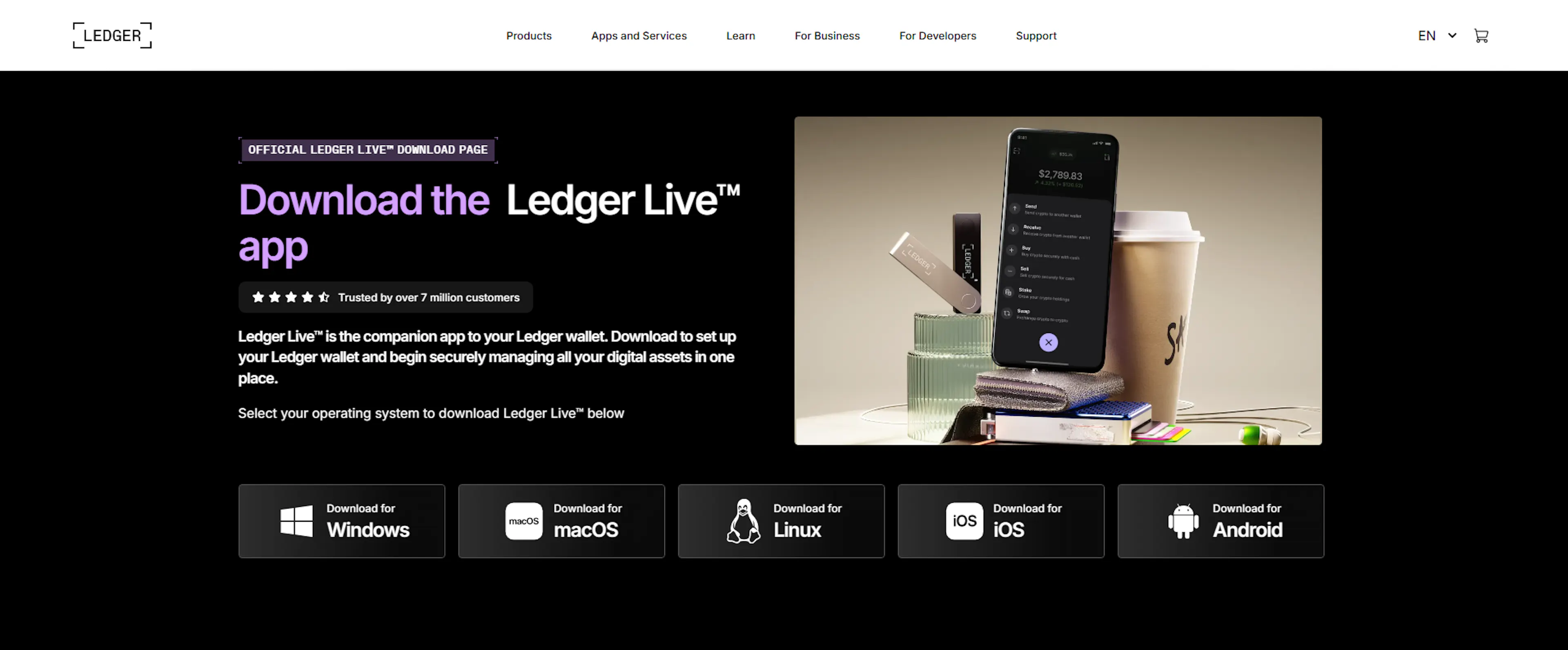
Ledger.com/start: Step-by-Step Hardware Wallet Setup and Management Guide
Introduction to Ledger.com/start
As cryptocurrency adoption grows, protecting digital assets becomes an important part of managing a portfolio. A Ledger hardware wallet is designed to keep private keys protected inside a dedicated physical device while allowing users to manage supported cryptocurrencies.
Ledger.com/start is Ledger's official starting point for setting up a compatible hardware wallet. It helps users find the correct device instructions, access Ledger Wallet, and understand the steps involved in initializing their device.
This guide covers the setup process, application features, account management, recovery procedures, and practical security recommendations.
Understanding Ledger.com/start
Ledger.com/start provides official setup guidance for compatible Ledger hardware wallets. It helps users move through the initial configuration process and find the appropriate software for their device.
Depending on the model, setup may involve:
- Selecting your Ledger hardware wallet.
- Downloading Ledger Wallet, formerly called Ledger Live.
- Connecting and verifying your device.
- Creating a PIN.
- Generating a new wallet or restoring an existing one.
- Installing supported cryptocurrency applications.
- Adding accounts for digital asset management.
Starting with Ledger's official resources helps users avoid unofficial applications and imitation support websites.
Why Use a Ledger Hardware Wallet?
A hardware wallet offers a different approach to cryptocurrency security compared with keeping private keys on an internet-connected device. Ledger hardware wallets are designed to protect private keys within their security architecture and require users to approve supported transactions through the physical device.
Important advantages include:
Dedicated Key Protection: Private keys are protected within the hardware wallet rather than being directly exposed through ordinary computer activity.
On-Device Confirmation: Review transaction information on the device before approving supported operations.
Account Organization: Manage compatible cryptocurrency accounts through Ledger Wallet.
Asset Management: Access supported blockchain applications and account features.
Recovery Support: Use your Secret Recovery Phrase to restore wallet access through a compatible recovery procedure.
The exact features and supported assets depend on your Ledger model and software compatibility.
How to Get Started at Ledger.com/start
Step 1: Open the Official Website
Enter Ledger.com/start directly into your browser. Verify the website address before downloading applications or following instructions.
Step 2: Choose Your Hardware Wallet
Select your Ledger device model and review the setup instructions provided for that particular device.
Step 3: Install Ledger Wallet
Download Ledger Wallet, previously known as Ledger Live, from an official Ledger source. Choose the appropriate version for your operating system and complete the installation.
Step 4: Connect and Verify Your Device
Connect your hardware wallet using its supported connection method. Follow the on-screen instructions and complete the recommended authenticity checks.
Step 5: Create a Secure PIN
If initializing a new device, follow the device instructions to choose a PIN. Keep this code private and avoid using easily guessed combinations.
Step 6: Set Up Your Wallet
Choose the option to create a new wallet or restore an existing one. For a new wallet, your device will generate a Secret Recovery Phrase. Carefully record it in the correct order and store it securely offline.
Step 7: Install Supported Applications
Open Ledger Wallet and install the cryptocurrency applications required for your preferred supported networks. Application availability depends on the device model.
Step 8: Add Accounts and Review Your Portfolio
Add compatible accounts and explore the application. You can review balances, check transaction history, and access supported cryptocurrency-management features.
Main Features of Ledger Wallet
Ledger Wallet brings several wallet-management functions together in one application.
- Portfolio Dashboard: View balances for supported cryptocurrency accounts.
- Account Management: Add, organize, and review compatible accounts.
- Transaction Preparation: Prepare supported sending and receiving transactions.
- Transaction History: Review previous account activity.
- Application Management: Install and manage supported blockchain applications.
- Device Information: Access relevant device and software settings.
Not every feature or cryptocurrency is available on every Ledger device.
Best Security Practices for Your Ledger Wallet
A hardware wallet can help protect private keys, but users must also protect their recovery information and remain alert to scams.
- Keep your Secret Recovery Phrase private and offline.
- Never share recovery words with customer support or anyone else.
- Never enter your recovery phrase into an unfamiliar website or application.
- Download Ledger software only from official sources.
- Check transaction details on your physical device before approval.
- Keep your PIN confidential.
- Avoid suspicious links and unexpected messages requesting wallet information.
- Store your recovery backup somewhere secure and protected from damage.
Remember: Your Secret Recovery Phrase can provide access to your cryptocurrency. Anyone who obtains it may be able to control the associated funds.
Troubleshooting Common Setup Issues
Ledger Device Is Not Detected: Check the cable and connection, try another compatible port, and restart Ledger Wallet.
Software Installation Fails: Confirm that the downloaded application matches your operating system and came from an official Ledger source.
Cryptocurrency Account Is Missing: Check whether the required blockchain application is installed and whether the account has been added.
Device Update Does Not Complete: Follow the official troubleshooting guidance for your particular Ledger model.
For security reasons, never disclose your recovery phrase while requesting technical assistance.
Frequently Asked Questions
What is Ledger.com/start?
It is Ledger's official starting point for hardware wallet setup instructions and related software resources.
Is Ledger Wallet free to download?
The companion application is available to download. Certain transactions and third-party services may involve separate fees.
Can I manage multiple cryptocurrency accounts?
Yes. You can manage supported accounts through Ledger Wallet, depending on device and network compatibility.
Can I restore my wallet on a replacement device?
A compatible recovery procedure may allow you to restore access using your Secret Recovery Phrase. Follow official instructions carefully.
Does Ledger support need my recovery phrase?
No. Never disclose your Secret Recovery Phrase to anyone, including people claiming to represent Ledger.
Conclusion
Ledger.com/start provides a useful starting point for users configuring a compatible Ledger hardware wallet. From choosing the correct device instructions and installing Ledger Wallet to creating a PIN and organizing supported accounts, the setup process helps users prepare for cryptocurrency management.
Use official software, verify transactions directly on your device, and keep your Secret Recovery Phrase private. These habits are essential for protecting your digital assets and maintaining control of your wallet.