Ledger.com/Start® — Getting™ Started | Ledger®
Explore Ledger.com/start for clear guidance on initializing your Ledger hardware wallet, configuring device settings, and accessing compatible wallet software.
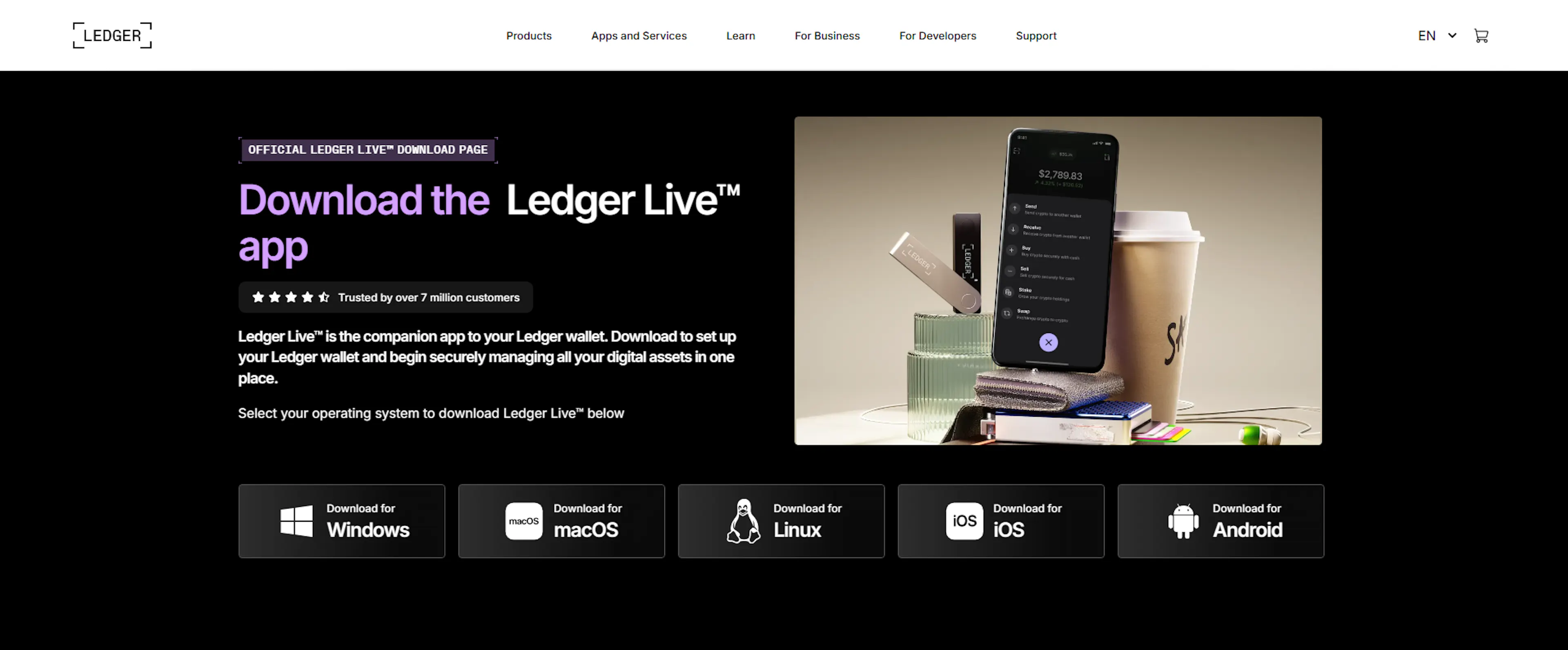
Ledger.com/start: Step-by-Step Guide to Hardware Wallet Setup and Crypto Security
Introduction to Ledger.com/start
Ledger.com/start is the official online destination for users beginning their journey with a Ledger hardware wallet. It provides setup guidance to help users connect their device, install the appropriate companion software, verify device authenticity, and configure essential security features.
A Ledger hardware wallet is designed to protect private keys inside a secure element. This approach helps users maintain control over their cryptocurrency while keeping sensitive signing operations within their hardware device.
For anyone managing digital assets, understanding the correct setup procedure is an important part of building a secure wallet environment.
Why Start With Ledger.com/start?
Choosing the official Ledger setup page helps users access genuine instructions and compatible software. It also makes it easier to identify the correct process for different Ledger hardware wallet models.
The official setup page provides guidance for:
- Connecting and configuring a Ledger device.
- Installing Ledger Wallet software.
- Checking device authenticity.
- Creating a PIN and recovery backup.
- Exploring supported cryptocurrency accounts.
- Finding official troubleshooting resources.
Always enter the website address manually:
Check the domain carefully before downloading applications or entering any information.
How to Set Up Your Ledger Hardware Wallet
Step 1: Prepare Your Hardware Wallet
Unbox your Ledger device and prepare a compatible USB cable and computer. Read the model-specific instructions before starting the configuration.
Step 2: Open the Official Setup Website
Visit Ledger.com/start and follow the instructions provided for your particular hardware wallet. Avoid setup links sent through unsolicited messages.
Step 3: Connect Your Ledger Device
Connect the hardware wallet to your computer using a compatible cable. Follow the prompts shown on the device screen.
Step 4: Download Ledger Wallet
Access Ledger Wallet, formerly known as Ledger Live, through Ledger's official website. Download the appropriate version for your operating system and complete the installation.
Step 5: Verify Device Authenticity
Use the verification process provided by the official application. Complete the recommended checks before proceeding with wallet management.
Step 6: Create a Secure PIN
Follow the device instructions to configure a PIN. Select a code that is difficult to guess and never share it with another person.
Step 7: Generate and Protect Your Recovery Phrase
Your Ledger device will guide you through the recovery backup process. Carefully write down the recovery words in their displayed order and store them securely offline.
Never share your recovery phrase, photograph it, or enter it into a website or computer application.
Step 8: Start Managing Supported Assets
After completing the initial setup, open Ledger Wallet and explore the supported cryptocurrency accounts and available features.
Understanding Ledger Wallet Features
Ledger Wallet provides tools for managing compatible cryptocurrency accounts through a connected Ledger hardware wallet.
1. Portfolio Overview
Review supported cryptocurrency balances and account information from the application interface.
2. Cryptocurrency Transfers
Send and receive supported digital assets while verifying transaction information on your hardware wallet.
3. Account Organization
Manage compatible cryptocurrency accounts and keep wallet information organized.
4. Transaction Monitoring
Review previous transfers and check transaction details.
5. Device Management
Access supported device settings and follow available firmware update instructions.
6. Supported Asset Information
Explore compatible cryptocurrencies and networks. Availability depends on the hardware model, application version, and network support.
Important Security Practices for Ledger Owners
Keeping your hardware wallet secure requires more than completing the initial setup. Good security habits should continue whenever you access or manage your cryptocurrency.
- Store your recovery phrase in a private, secure offline location.
- Never share recovery words with customer support or anyone else.
- Do not enter your recovery phrase into websites, online forms, or unsolicited applications.
- Verify recipient addresses and transaction amounts on the device screen.
- Download Ledger Wallet only from official Ledger sources.
- Avoid suspicious advertisements, fake support accounts, and unexpected links.
- Keep your computer operating system and browser updated.
Recovery phrase warning: Anyone who obtains your recovery phrase may be able to access your wallet. Treat it as the master backup for your digital assets.
Troubleshooting Common Ledger Wallet Issues
Hardware Wallet Is Not Recognized
Check the cable and USB connection. Try another compatible port or cable, then reconnect the device.
Ledger Wallet Will Not Install
Make sure you are using the official Ledger download page and a supported operating system. Check the application requirements.
Device Connection Problems
Restart the application and reconnect your hardware wallet. Follow Ledger's official troubleshooting guidance if the issue remains.
Firmware Update Difficulties
Use only the update instructions provided through official Ledger software. Do not install firmware from unknown websites.
Cryptocurrency Account Is Missing
Check whether the asset and network are supported by your device and current application version. Consult official documentation for account-specific guidance.
Frequently Asked Questions
What is Ledger.com/start?
It is Ledger's official setup destination for users configuring compatible Ledger hardware wallets.
Is Ledger Wallet the same as Ledger Live?
Ledger Wallet is the current name of Ledger's companion application, previously known as Ledger Live.
Can I use Ledger Wallet on another computer?
You can generally install the compatible application on another supported computer and connect your hardware wallet to access supported accounts.
What happens if my Ledger device is lost?
Your recovery phrase can help restore wallet access using a compatible wallet recovery process. Keep the backup secure and private.
Does Ledger support ask for recovery words?
No. Never disclose your recovery phrase to anyone, including people claiming to represent Ledger.
Conclusion
Getting started through Ledger.com/start helps users follow the official process for configuring their Ledger hardware wallet. From device verification and software installation to PIN configuration and recovery backup protection, each step plays an important role in responsible cryptocurrency management.
Use authentic software, carefully verify transactions, and keep your recovery information private. These practices can help you manage supported digital assets with greater confidence.
Disclaimer: This is an independent educational resource and is not affiliated with or endorsed by Ledger. For authentic setup instructions, official software, and support, visit https://www.ledger.com/start.